

Time and clock settings in the MetaTrader 5 platform are crucial for traders from multiple perspectives. In financial markets, even a few seconds or minutes of difference can lead to significant profit or loss. Traders must be familiar with time related concepts and be able to adjust their trading plans accordingly. Some of the most important reasons a trader needs to master these concepts include: timing trade entries and exits, determining trading sessions, understanding the impact of economic news and its release time, aligning analytical strategies with timeframes, being aware of the broker server time and its difference from local time, execution time of orders and synchronizing it, and its role in technical analysis.
In this article from MondFx , stay with us as we learn together how to adjust the MetaTrader clock and why this is highly important.
What Is MetaTrader?
MetaTrader is an online trading platform that allows traders to connect to various Forex brokers and provides them with a framework for executing trades via computer or mobile devices. This software essentially acts as an intermediary between the trader and the broker, enabling direct access to financial markets without relying on a broker’s proprietary platform. For this reason, MetaTrader has become one of the primary trading tools in the Forex market , giving traders greater flexibility in choosing their broker.
In cases where a broker does not provide a standalone or powerful trading platform, MetaTrader serves as an alternative environment, allowing users to continue trading with the same broker but within the standardized MetaTrader interface. Today, the software is available in two main versions known as MT4 and MT5, which were respectively released in 2005 and 2010 by the software company MetaQuotes. MetaQuotes, which has Russian origins, is now considered one of the most influential companies in the global financial and trading software industry. You can easily download this software from the main page of the MondFx broker and install it on your computer or mobile device.
Can we change the time in MetaTrader?
No, the main time in MetaTrader cannot be changed, because MetaTrader’s time settings are based on the server of the broker you are connected to. The reason for this is related to how the MetaTrader software functions and the structure of its connection to the broker’s servers. Time and scheduling in MetaTrader are directly determined by the broker’s server, and users are not allowed to modify it.
In fact, when you open MetaTrader, all candlesticks, price data, and time settings are based on the server time of the broker you are connected to—not your local system time. Therefore, even if your Windows or mobile device is set to the Tehran time zone, the time displayed on MetaTrader charts may still be several hours ahead or behind.
The inability to change the time in MetaTrader exists for technical and logical reasons. If each user could freely adjust the software’s time, the synchronization between prices, candlesticks, analyses, and trading tools would be completely disrupted. Since many technical analysis strategies and trade timing depend on the precise timing of global markets, it is essential that MetaTrader’s time remains unified and stable for all users.
Typically, MetaTrader’s time differs from your system time. This difference often occurs because the broker’s server uses a specific time zone (such as GMT+2 or GMT+3). In some cases, the discrepancy is due to the application or non application of Daylight Saving Time in different countries. Therefore, seeing a few hours of difference between MetaTrader time and your personal system time is completely normal.
Understanding Time and Clock Settings in MetaTrader
To better understand how time works in MetaTrader, you need to become familiar with the basic time related concepts used in the platform. MetaTrader does not operate with only one clock; instead, it involves several types of time, each playing a specific role in trading and analysis. Below, we review the most important time concepts in MetaTrader.
System Time
System Time is the time set on your device (such as Windows or mobile). This time is usually based on your local time zone (for example, Tehran). MetaTrader uses the system time to display certain notifications or alerts, But it is not the main basis for time, candlesticks, or price data.
Server Time
Server Time is the most important time in MetaTrader. This time is set by the broker’s server, and all price information, candlestick opening and closing, order execution, and market events are defined based on it. You cannot change this time. The server time may be configured according to a specific time zone, such as GMT+2 or GMT+3, and it may differ from your country’s local time.
Candle Time
Each candlestick on the MetaTrader chart is labeled and timed based on the server time. This means that if a candlestick appears at 12:00, that time corresponds to the broker’s server, not your system time. Knowing this is very important for technical analysis , because consistency and accuracy in candlestick timing play a crucial role in price patterns and trading strategies.
Time Zone and Its Impact
The time difference between your broker’s server and your local time is usually due to differing time zones. Some brokers use European time (e.g., GMT+2), while others follow New York or London time. This time difference can cause the opening and closing times of daily candlesticks to differ from what you expect. For this reason, many professional traders check which global market their broker’s server is aligned with.
The Difference Between GMT, UTC, and Local Time
In the world of global trading, three types of time are used more than others:
GMT: The official time of the United Kingdom without considering seasonal changes.
UTC: Similar to GMT but more precise and without seasonal adjustments.
Local Time: The time set on your device or the country you live in.
MetaTrader usually does not use GMT or UTC as a reference; instead, it follows the broker’s server time, which may be configured according to a specific time zone. Understanding these differences helps you perform more accurate time based analysis and stay synchronized with the release times of economic news.
Adjustable Times and Clocks
Although the main clock in MetaTrader 4 and 5 cannot be changed, there are still certain time settings within MetaTrader that can be adjusted. Applying these adjustments is important for traders when executing and defining various trades and strategies.
The inability to change MetaTrader’s primary time does not mean you have no control over how time is managed or displayed. In this section, we highlight the options that help you indirectly manage and customize time in MetaTrader.
Adjusting and Synchronizing System Time with the Broker’s Time
Synchronizing your system time with the broker’s server time means changing the actual clock and time zone of your computer so that they match the broker’s server time exactly. This is usually done to create better mental alignment for traders, because candlestick times and trade executions in MetaTrader are based on the broker’s server time, and if your system time differs, you may misinterpret the exact timing of trades.
In this case, your computer clock will match the market time, but the actual candlestick times in MetaTrader will not change and will still display based on the broker’s server.
How to Change the Time Zone in Windows
Go to Windows Settings.
Navigate to the Time & Language section.
Select Date & Time.
In the Time Zone section, choose the time zone of your broker’s server (for example, GMT+2 or GMT+3).
If Set time automatically is enabled, disable it and set the time manually.
Changing the Time and Date Format
Changing the time and date format on your system only affects how the time and date are displayed and does not alter the actual system clock. For example, you can set the time to be shown in a 12 hour format (with AM and PM) or a 24 hour format, or adjust the date format to display as day/month/year or year/month/day. This modification only changes the visual presentation of time and date in applications, including MetaTrader, making it easier to read and aligned with your local preferences. However, the actual system clock and the broker server time remain unchanged.
How to Change the Date and Time Format in Windows
Open the Control Panel and go to Clock and Region.
Select Region.
In the Formats tab, click on Additional Settings.
Go to the Time or Date tab and choose or enter your preferred format (for example, HH:mm for 24 hour time).
Save the changes and restart MetaTrader.
Changing the Chart Timeframe
Timeframe refers to the time interval of the candlesticks on the chart—for example, 1 minute, 5 minutes, 1 hour, or 1 day. This feature allows you to view market details across different time intervals.
How to Change the Chart Timeframe
From the toolbar at the top of MetaTrader, click on the timeframe options (such as M1, M5, H1, D1, etc.).
Or right click on the chart, select Timeframes, and choose your desired timeframe.
You can also quickly switch timeframes using shortcut keys such as F1 (for M1), F2 (for M5), and so on.
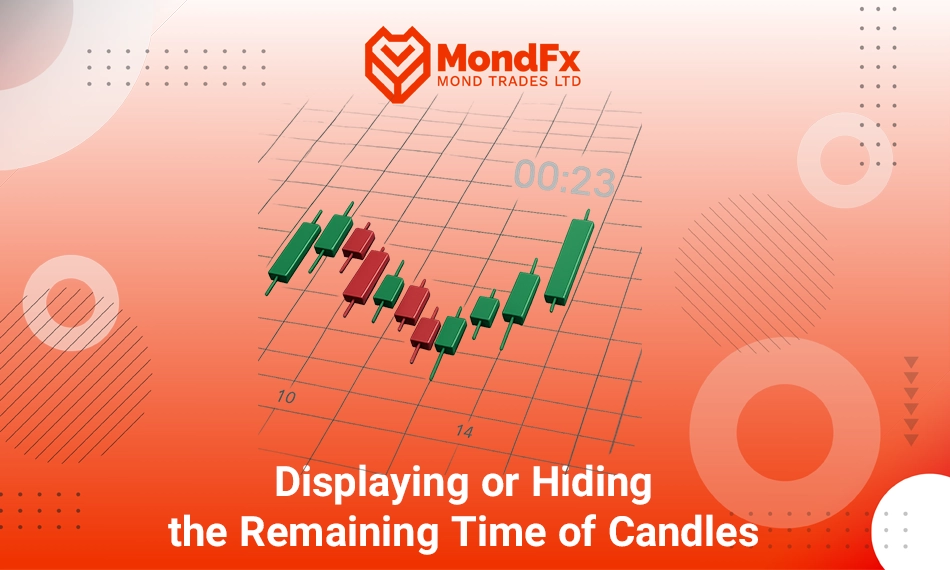
Displaying or Hiding the Remaining Time of Candles
In financial markets especially the crypto market knowing how much time is left until a candlestick closes is very important. This helps with refining entry and exit points, determining the exact duration for monitoring trade trends, and managing trading emotions and impulses.
To achieve this, indicators such as Candle Timer display a countdown on the chart so you always know when the current candlestick will close.
How to Show or Hide the Remaining Time of Candles
Download and install indicators such as Candle Timer.
Copy the indicator file into the MQL4/Indicators directory, then drag the indicator onto the chart from the Navigator window in MetaTrader.
Configure the indicator’s time zone settings (such as GMT or local time).
Adjusting the Time Displayed in Market Watch (Symbols Window)
In the Market Watch window, the time of the last trade or candlesticks is shown by default based on the broker server time. However, you can slightly customize this window using indicators or scripts.
Summary
In this article, we aimed to show you that time and clock settings in MetaTrader 4 and 5 play a crucial role in trade accuracy, technical analysis, and proper execution of strategies. However, contrary to what some users believe, the main MetaTrader time cannot be changed and is always synchronized with the broker’s server time. Traders must clearly understand the difference between system time, server time, candle time, and time zones to avoid analytical and trading errors. Although it is not possible to directly change MetaTrader’s clock, users can indirectly manage and fine tune their trade timing by synchronizing Windows time with the broker’s server, adjusting the date and time display format, setting chart timeframes, using indicators that show remaining candle time, and applying tools that display local time. These settings help traders maintain better control over market trends, entry and exit points, trading sessions, and reactions to economic news.
If you are looking to begin a reliable journey in the world of trading, collaborating with the MondFx team can be a great starting point for building your personal strategy.