

MetaTrader is not merely a trade execution platform; rather, it is considered a professional environment for analysis, decision making, and managing market behavior. A trader seeking more precise and structured analysis inevitably must use tools that can display the hidden information within price movement more clearly. Indicators play exactly this role; tools that, by processing price data, help the trader examine market trends, the strength of buyers and sellers, and potential entry and exit points with deeper insight. Becoming familiar with how to add indicators in MetaTrader is the first step toward customizing the analysis workspace and moving toward professional and informed trading, something we will address today in this article from MondFx.
What Is an Indicator?
Indicators are analytical tools in the Forex market that, by processing price data and trading volume, provide the trader with precise and reliable information about market behavior. These tools do not change price movement; rather, they allow the analyst to identify and analyze price trend changes, the strength of buyers and sellers, volatility, and potential entry and exit points with deeper insight. The smart use of indicators alongside charts and risk management provides a solid foundation for professional decision making and informed trading.
Types of Indicators in MetaTrader
Indicators in MetaTrader are divided into two main categories. The first category is default indicators, which are pre-built into the platform and are easily usable. The second category is custom indicators, or so called Custom Indicators, which are designed by programmers, and users can obtain them from various sources and add them to MetaTrader.
MetaTrader supports the MQL programming language, and for this reason, the possibility of developing professional indicators by users is provided.
How to Add Default Indicators in MetaTrader
The MetaTrader platform, as one of the most comprehensive analytical tools in financial markets, provides users with a set of built in indicators by default. These indicators do not require installation or downloading any files, and from the very moment the software is installed, they are available to the trader. By using these tools, users can easily perform basic and even advanced technical analyses without needing programming knowledge.
Accessing Indicators from the Navigator Panel
To view the list of default indicators, it is enough to open the Navigator panel on the left side of MetaTrader. In this panel, there is an option called Indicators, and by clicking on it, a complete list of indicators is displayed. These indicators are provided in a categorized format so that the user can select the appropriate tool depending on their needs. Categories such as trend indicators (Trend), oscillators (Oscillators), volume tools (Volumes), and the Bill Williams group (Bill Williams) are among the main classifications in this section.
Adding an Indicator to the Trading Chart
To activate a default indicator, you can use two methods. The first method is double clicking on the indicator name in the Navigator list. In this case, a window opens where you can adjust the indicator parameters according to your trading strategy. These parameters include the calculation period, the type of base price (Close, Open, High, Low), line colors, alert levels, and other graphical features. After setting them, by pressing OK, the indicator is added to the chart and starts displaying information live.
In the second method, you can drag and drop the indicator using the mouse from the Navigator list onto the chart. This method also immediately opens the settings window and will have a similar function. After applying the settings, the indicator will start processing and displaying output based on the chart’s price data.
Features and Benefits of Using Default Indicators
MetaTrader’s default indicators are designed by the development team of this platform, and in terms of compatibility with the software environment, calculation accuracy, and performance stability, they are at a very high level. These indicators run without the need for external files, access permissions, or system changes, and in this regard, they are considered a safe and reliable option for traders.
One of the important advantages of these tools is the ability to use multiple indicators simultaneously on a single chart. For example, the user can combine a Moving Average with the Relative Strength Index (RSI) and MACD, and use their overlap to obtain more accurate signals. Also, these indicators can easily be edited or removed by right clicking on the chart.
For beginner traders, using built in indicators is considered the best starting point on the path of learning technical analysis. These tools can be run without particular complexity and provide the ability to practice and review various strategies in a simple and safe environment. Also, many classic and popular market strategies are designed based on these very default indicators.
Installing a Custom Indicator in MetaTrader
Alongside default indicators, many traders prefer to use custom indicators; tools that are designed by independent developers and provide specific capabilities for more accurate market analysis. MetaTrader has made it possible for users to easily add and run these indicators on their platform.
Downloading and Identifying the Indicator File
Custom indicators are usually provided in specific formats that are determined based on your MetaTrader version. In MetaTrader 4, these files are recognized with the .mq4 or .ex4 extensions, while in MetaTrader 5 the files are provided with the .mq5 or .ex5 extensions. MQ files are usually editable, whereas EX files are compiled and only usable.
Importing the Indicator into the Relevant Folder
To install an indicator, you first need to open the indicator installation path in MetaTrader. From the top menu of the software, select File and then click on Open Data Folder. After the folder related to MetaTrader data opens, enter the MQL4 or MQL5 folder, depending on which version of the platform you are using. Inside this folder, there is a subfolder named Indicators. Copy your custom indicator file into this section.
Resetting MetaTrader to Recognize the Indicator
After copying the file into the desired folder, it is necessary to close the MetaTrader platform once and then run it again. By doing so, the custom indicator will be added to the Navigator list, and you can add it to the chart just like built in indicators. If the indicator does not appear in the list, it is possible that the file is incomplete or incompatible with your MetaTrader version.
Checking Compatibility and Initial Performance
Before using a custom indicator continuously, it is better to test it on a demo account. Some indicators may have software bugs or consume a lot of system resources. Also, if the indicator uses external functions, it may be necessary to enable the access permission checkbox in the Allow DLL Imports settings. Carefully checking performance and initial settings prevents potential issues during trading.
How to Activate a Custom Indicator on the Chart in metatrader
After successfully installing a custom indicator in MetaTrader, it is time to run it on the trading chart. This stage is the starting point for practical use of the analysis tool and must be done carefully so that the indicator works correctly and does not encounter errors or disruptions.
Running the Indicator from the Navigator Panel
To activate it, you must first find the desired indicator in the Indicators list within the Navigator panel. If installed correctly, the indicator’s name will appear in this list. By double clicking it, or by dragging and dropping it onto the desired chart, the initial settings window will open. In this window, you can customize important parameters such as the timeframe, calculation period, line colors, alert levels, and other visual and analytical features according to your strategy.
Security Settings and Access to Resources
Some custom indicators depend on external resources or require the use of external files to function. In this case, in the same settings window, go to the Common tab and enable the Allow DLL Imports option. Also, depending on the indicator’s specific design, it may be necessary for the Auto Trading option to be enabled as well so that some of its automated functions can run.
Verifying Proper Execution and Instant Updates
After confirming the settings and selecting OK, the indicator should be activated on the chart and display its analytical information. If the indicator does not load, or no changes are seen on the chart, the issue may be related to its coding or incompatibility with the MetaTrader version. In such cases, it is recommended to first run it on a demo account and check its performance. Sometimes it is necessary to recompile the indicator file or obtain it from a more reliable source.
Common problems When Installing an Indicator
Sometimes an indicator may be installed but not displayed on the chart, or a specific error may be received. This issue is usually caused by incompatibility between the file version and the MetaTrader version, or the absence of required auxiliary files.
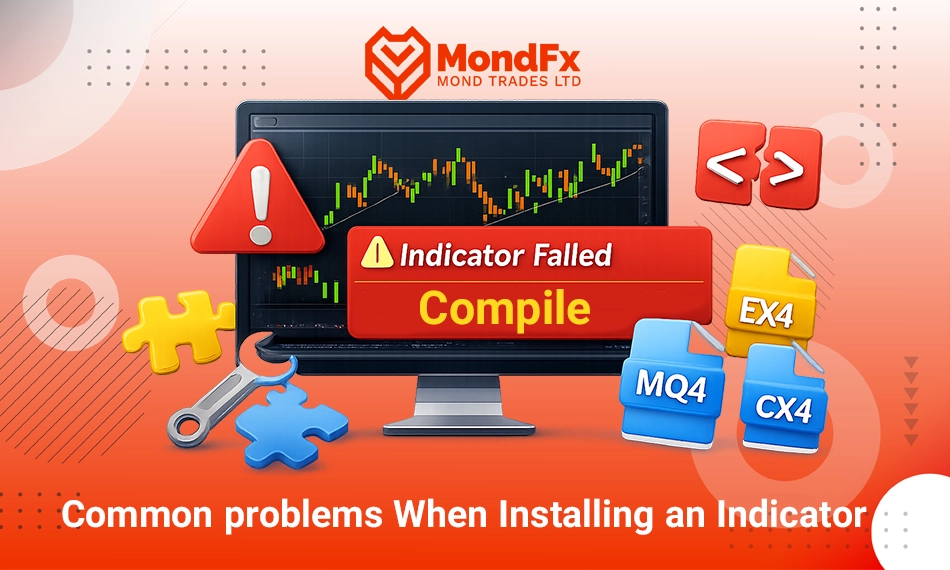
Also, if the indicator is written in an incomplete programming language or contains errors, it may encounter issues during compilation. In these cases, using a reliable version of the indicator or obtaining support from its developer is recommended.
The Difference Between Installing Indicators in MetaTrader 4 and MetaTrader 5
MetaTrader is offered in two popular versions, 4 and 5, both of which are used among Forex traders. Although the overall method of installing indicators is similar in both versions, there are technical and structural differences between them that are important for users to know especially when they intend to use custom indicators.
Differences in File Type and Folder Structure
In MetaTrader 4, indicators are provided in the .mq4 and .ex4 formats. These files are placed in the MQL4 > Indicators path. However, in MetaTrader 5, these formats change to .mq5 and .ex5 and are placed in the MQL5 > Indicators folder. The difference in folder structure and file type means that indicators written for one version cannot be run in the other version unless they are rewritten or recompiled.
Differences in Performance and Technical Capabilities
From a technical perspective, MetaTrader 5 provides broader capabilities for developing and running indicators compared to version 4. This version supports multi threading, which allows more complex indicators to run at higher speed. More professional graphic design, the ability to process more data, and higher accuracy in multi timeframe analyses are among the advantages of MetaTrader 5. In contrast, MetaTrader 4 has remained popular among many everyday traders due to its lightweight nature and simplicity.
Which Option Is Most Suitable for Which User?
MetaTrader 4 is an efficient and straightforward option for beginner users or traders who use general and lightweight indicators. However, if the user is looking to develop proprietary indicators, perform multi layer analyses, or use more advanced trading systems, MetaTrader 5 provides more professional capabilities.
Comparison Table: Meta Trader 4 and Meta Trader 5 indicators
| Feature | MetaTrader 4 (MT4) | MetaTrader 5 (MT5) |
|---|---|---|
| Indicator File Format | .mq4 / .ex4 | .mq5 / .ex5 |
| Installation Folder Structure | MQL4 > Indicators | MQL5 > Indicators |
| Processing Speed | Lower (single threaded) | Higher (multi threaded) |
| Development & Programming Capability | More limited | Broader and more modern |
| Graphics & Design Level | Simpler | More professional |
| Suitable For Users | General and light use traders | Developers and professional traders |
Professional Tips for Using Indicators
Although using indicators can help with better decision making, they should not be the sole basis for entering trades. Combining indicators with price action analysis, reviewing different timeframes, and applying sound risk management will yield the best results. It is also recommended that instead of using several similar indicators at the same time, you use indicators with complementary logic so that you receive fewer conflicting signals.
Session Indicator for MetaTrader 5
In the MetaTrader 5 platform, which is considered the more advanced version of MetaTrader, the ability to use custom indicators with higher graphical and processing capabilities is provided. One of the commonly used indicators in this version is the session indicator, or the display of trading sessions, which is vitally important for many time based or volume based strategies. This tool allows the trader to accurately view the opening and closing schedule of the main Forex sessions such as London, New York, Tokyo, and Sydney on the chart and analyze market behavior accordingly.
The Importance of Displaying Sessions in Market Analysis
Price behavior in the Forex market is highly dependent on the operating hours of global financial centers. For example, with the start of the London session, trading volume and market speed usually increase, while in the Asian session, lower volatility is observed. Knowing which part of the day the price is in helps the trader implement an appropriate strategy and avoid incorrect entries during low volume hours. The session indicator in MetaTrader 5 displays these time ranges visually on the chart using colored bands and advanced settings.
Installing and Using the Session Indicator in MetaTrader 5
To use this indicator in MT5, you must first download a compatible version in the .mq5 or .ex5 format from a reliable source and copy it into the Indicators folder located in the MQL5 directory. To do this, select Open Data Folder from the File menu, and after entering the MQL5 folder, go to the Indicators folder. After placing the file, by closing and reopening MetaTrader once, the indicator will be visible in the Navigator panel. By double clicking the indicator or dragging it onto the chart, its settings window will open, and you can configure parameters such as session colors, the time range, whether or not to display the name of each session, the calculation time zone, and other details.
Advantages of Using the Session Indicator in MetaTrader 5
Given the advanced programming capabilities in MetaTrader 5, the available versions of this indicator often have more precise graphical features, better alignment with the broker’s time, and additional features such as scheduling alerts. Also, the faster code execution capability makes it possible to run this indicator alongside other analytical tools without a loss of speed. Using this indicator helps the trader better understand the market’s time structure and optimize their entry and exit points.
Final Words
MetaTrader is not just a simple trading platform; rather, it is a comprehensive and professional environment for analysis, decision making, and market management. The ability to add indicators, whether default or custom, gives the trader power beyond merely observing prices and enables more accurate analysis of trends, volatility, and key market levels.
Session indicators, moving averages, RSI, MACD, and other tools, when combined with technical analysis knowledge and risk management, become a solid foundation for professional decision making. Ultimately, mastering how to add and correctly use indicators paves the way for informed and professional trading, enabling the trader to navigate the Forex markets with greater confidence and make the best use of opportunities and risks. By visiting the Platforms page on the MondFx website , you can easily download and install the latest versions of trading software, including MetaTrader 5 or cTrader, directly for your computer system or mobile phone.
If you are looking to start a reliable path in the world of trading and financial markets, collaborating with the MondFx team can be a good starting point for building your personal strategy.