

MetaTrader 5 (MT5) is one of the most widely used and powerful trading platforms used by traders around the world. This platform provides a variety of tools for executing trades, market analysis, and managing trading accounts. However, before using MetaTrader 5, traders must first connect the platform to a broker in order to be able to start trading. In this article, stay with us as we jointly review the method of connecting MetaTrader to a broker.
What is MetaTrader 5 (MT5)?
MetaTrader 5 is a multi purpose platform designed for trading various types of financial instruments such as forex, stocks, commodities, and cryptocurrencies. This platform provides advanced tools for analysis, creating trading robots (Expert Advisors), and managing trades. However, to execute trades, you must connect MetaTrader 5 to a broker that offers support for this platform.
A broker acts as an intermediary between you and the financial markets and facilitates the execution of trades. For effective use of MetaTrader 5, your broker must provide access to liquidity, market data, and execution services through a MetaTrader 5 account.
Steps to Connect a Broker to MetaTrader 5
To use the MetaTrader 5 (MT5) platform and carry out online trading, the first step is to connect the platform to a broker. This process consists of several stages that must be completed correctly in order to access the financial markets, analyze data, and properly manage a trading account.
Step One: Downloading and Installing MetaTrader 5
Before you can connect MetaTrader 5 to your broker, you must download and install the platform. This platform is available for Windows, macOS, and mobile devices. To download and install MetaTrader 5, you should first visit the official MetaTrader website or your broker’s website.
After entering the website, select the version compatible with your operating system (Windows, macOS, Android, or iOS) and download the installation file. Then, run the downloaded file and follow the on screen instructions until the installation process is fully completed. After a successful installation, you can launch MetaTrader 5.
Step Two: Opening a Trading Account with a Broker
To use MetaTrader 5, you must open a trading account with your chosen broker. Most brokers offer MetaTrader 5 as their trading platform. To do this, you must first visit the broker’s website and register. During the registration process, enter the required information for identity verification and funding your account. You must also choose your account type , which may include options such as a standard account, demo account , ECN account, or others.
After completing the registration process, the broker will send you the necessary information to log in to your trading account. This information includes a username, password, and server details, which are essential for connecting MetaTrader 5 to the broker’s system.
Step Three: Setting Up MetaTrader 5 and Logging into the Account
After installing MetaTrader 5 and receiving your account details from the broker, you can easily log in to the platform. To log in to your trading account in MetaTrader 5, first open the platform and, from the top menu, select the “File” option. Then choose “Login to Trade Account.”
In the new window that opens, enter your account information, including the account number, password, and the broker’s server address. Server information is usually provided by the broker in the welcome email or available in the support section of the broker’s website.
Step Four: Entering the Broker’s Server Information
To connect to the broker’s server, you must enter the exact server details. At this stage, enter your username and password, and select your broker’s server from the list of available servers. For example, there may be options such as “BrokerName Real” or “BrokerName Demo” for live and demo accounts.
Make sure that the server and login details are entered correctly. If you do not recognize the server or encounter any issues, contact the broker’s support team to obtain the correct information.
Step Five: Logging into the Account
After entering the login credentials and selecting the correct server, click the “Login” button. If your information has been entered correctly, you should be automatically connected to the broker’s server. At this stage, market data will be automatically loaded from the broker’s server, and you will be able to access live price charts, trade history, and other platform tools.
Step Six: Checking the Connection and Synchronization
After successfully logging into your trading account, you should verify that your connection to the broker’s server is stable and that your account is synchronized with the broker’s data. At the bottom right of the MetaTrader 5 platform, a green indicator shows a successful connection. If the indicator is red, it means that there is an issue with the server connection and further investigation is required.
In addition, check that the account balance, open positions, and trade history are displayed correctly on the platform. This indicates that your account has been properly synchronized with the broker’s data.
Step Seven: Start Trading
After successfully connecting MetaTrader 5 to the broker, you are now ready to start trading.The MetaTrader 5 platform provides a range of advanced tools for technical analysis, trade execution, and risk management. You can make use of various features such as:
Live market data and price charts
Fundamental and technical analysis tools and indicators
Expert Advisors (EAs) for automated trading
Trade execution features (market orders, limit orders, stop orders)
Risk management tools and stop loss and take profit tools to manage your trades effectively.
Troubleshooting Connection Issues
If you encounter problems while trying to connect to MetaTrader 5, some troubleshooting steps include:
Checking Login information: Make sure that the username, password, and server details have been entered correctly.
Checking the Server: Recheck the broker’s server information. If you are not sure, contact the broker’s support team.
Internet Connection: Ensure that your internet connection is stable.
Firewall and Antivirus: Sometimes firewall or antivirus software can block MetaTrader 5 from connecting to the broker’s server. Try temporarily disabling them and attempt to reconnect.
Broker Server Status: At times, the broker’s server may be offline due to maintenance or technical issues. Contact your broker to check the server status.
The problem of the broker server not being displayed in MetaTrader 5
If you do not see your broker’s server while trying to connect to MetaTrader 5, there may be several reasons causing this issue. In this section, solutions to resolve this problem are provided:
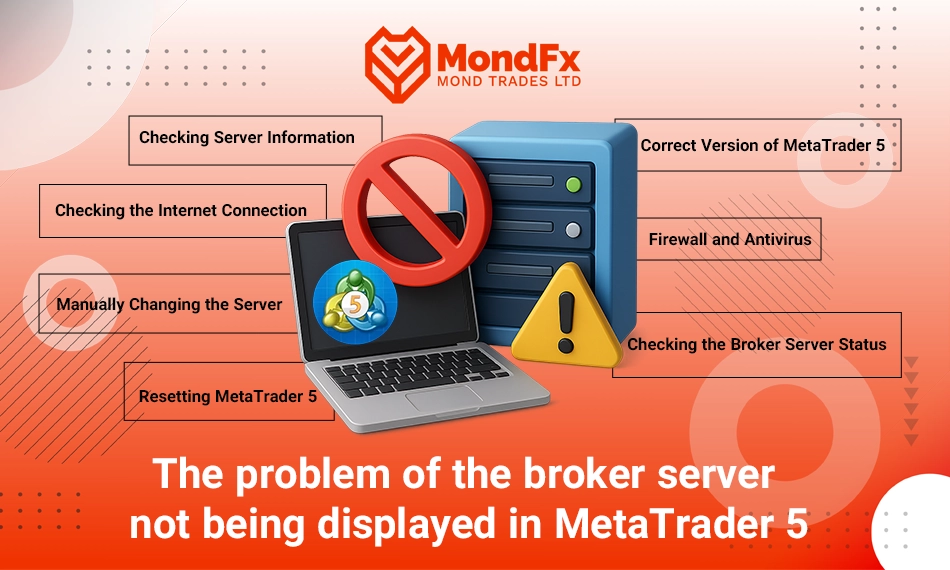
1. Checking Server Information
The first step is to make sure that you have entered the server information correctly. Your broker’s server may be specifically listed under a name such as “BrokerName Real” or “BrokerName Demo.” If you have not received the server details from your broker or are unsure which server to select, it is best to contact the broker’s support team and request the exact server information.
2. Checking the Internet Connection
Ensure that your internet connection is stable and that there are no network connectivity issues. Sometimes, problems with the internet connection can prevent the server information from loading properly in MetaTrader 5. To verify your internet connection, you can test other websites or applications.
3. Manually Changing the Server
In some cases, the broker’s server may not appear automatically in the server list. In this situation, you can manually enter the server address. To do this, obtain the server address from your broker and enter it in the “Server” field. This will help you connect to the server.
4. Firewall and Antivirus
Sometimes, firewall or antivirus software may block MetaTrader 5 from connecting to the broker’s server. To resolve this issue, try temporarily disabling your firewall or antivirus and then attempt to reconnect to the broker’s server. If the issue is resolved, you should configure your firewall or antivirus settings to allow MetaTrader 5 communications.
5. Using the Correct Version of MetaTrader 5
Make sure that the version of MetaTrader 5 you have downloaded is supported by your broker. Some brokers provide customized versions of MetaTrader 5 that may differ from the standard version. In this case, it is better to download and install the correct version of MetaTrader 5 directly from your broker’s website.
6. Checking the Broker Server Status
At times, the broker’s servers may experience temporary issues due to maintenance or updates. If none of the above methods resolve the problem, contact the broker’s customer support and ask about the status of the broker’s server. If the server is unavailable, you will need to wait until the broker resolves the issue.
7. Resetting MetaTrader 5
Finally, if none of the above solutions resolve the issue, it is recommended to reinstall MetaTrader 5. To do this, uninstall the platform and download a new version from the broker’s website or the official MetaTrader website, then proceed with the reinstallation. After reinstalling, re enter your server and account information.
Not seeing the broker’s server in MetaTrader 5 usually occurs due to various reasons such as incorrect information entry, the broker’s server being offline, or firewall and antivirus restrictions. By carefully reviewing these factors and following the troubleshooting steps mentioned above, you can identify the issue and easily restore your connection. If the problem persists, it is best to contact your broker’s support team to receive more precise solutions.
Testing the Connection to the Broker Server in MetaTrader 5
If you encounter issues when connecting to the broker’s server in MetaTrader 5, one of the important steps to check and resolve the problem is performing a connection test. This test helps you understand the connection status and the server’s condition and identify potential issues. Below is an explanation of how to perform a connection test in MetaTrader 5.
Steps to Perform a Connection Test in MetaTrader 5
1. Checking the Connection Status at the Bottom of the Platform
After opening MetaTrader 5 and entering your account details, the connection status to the server is displayed in the bottom right corner of the platform. In this area, a colored indicator (green or red) is shown:
Green indicator: The connection to the server is successful, and you are properly connected to the broker.
Red indicator: There is an issue with the server connection, and you are not able to connect to the broker correctly.
If a red indicator appears, it means there is a connection problem that needs to be investigated.
2. Using the “Test” Option in the “Login” Window
To check the connection status more precisely, you can use the “Login” window that appears when logging into your trading account. This option allows you to perform a simple connection test:
After opening the “Login to Trade Account” window, enter your username and password.
Before clicking “Login,” click the “Test” option.
The system will attempt to test your connection to the broker’s server and provide you with a report on the connection status.
If the connection is successful, a message stating“Connection successful” will be displayed. If the connection encounters a problem, a message such as“Connection failed” or“No connection” will appear, indicating an issue with connecting to the server.
3. Checking Firewall and Antivirus Settings
Sometimes, firewall or antivirus software may prevent a proper connection to the broker’s server. To perform a connection test under these conditions:
Temporarily disable your firewall or antivirus.
Try again to connect MetaTrader 5 to the server.
If the connection is established, you should configure your firewall or antivirus settings to allow MetaTrader 5 to communicate with the broker’s server.
4. Checking the Broker Server Status
If you are still experiencing connection issues, the broker’s servers may be unavailable or experiencing problems. To check the server status, you can:
Contact your broker’s customer support.
Ask about the broker’s server status and request more detailed information regarding the server condition.
Brokers usually send notifications to their clients regarding server maintenance or technical issues.
5. Using the Correct Version of MetaTrader 5
Make sure that the version of MetaTrader 5 you are using is supported by your broker. Some brokers provide customized versions of MetaTrader 5 that may differ from the standard public version. In such cases, it is better to download and install the correct version of MetaTrader 5 from your broker’s website.
6. Checking MetaTrader 5 Ports
Sometimes, connection issues may be caused by closed ports used by MetaTrader 5. In this case, you should ensure that the ports required by MetaTrader 5 are open in your firewall or router. Brokers usually specify certain ports for connecting to their servers, which must be configured correctly.
MetaTrader 5 Settings: A Complete Guide
MetaTrader 5 (MT5) is one of the most widely used trading platforms, providing traders with advanced features for executing trades, performing technical analysis , and managing accounts. In addition to trading tools, this platform offers various options for customizing and optimizing the working environment. In this article, the different settings of MetaTrader 5 are covered so that you can fully configure the platform according to your needs.
1. General Settings of the MetaTrader 5 Platform
To access the general settings of MetaTrader 5, go to the “Tools” menu and select the “Options” item. In this window, several different tabs are available for various settings.
“General” Tab
Language settings: In this section, you can change the platform language. MetaTrader 5 supports multiple languages.
Automatic platform restart: If the platform needs to restart automatically, you can enable this option.
Remote access to the platform: If you are using the mobile version of MetaTrader 5, you can configure remote access settings for the platform.
2. Server and Account Settings
“Server” Tab
In this section, you can view and configure information related to connecting to the broker’s server. This information is usually provided automatically by the broker, but you can also manually enter a new server.
“Trade” Tab
Maximum number of orders: The maximum number of orders that you can open simultaneously in your account.
Minimum distance between orders: The minimum distance that must exist between two similar orders.
Trading mode (Instant Execution / Market Execution): In this section, you can set the order execution method. Most brokers support order execution in “Market Execution” mode.
3. “Charts” Tab
In this tab, you can configure the chart display settings:
Color settings: You can change the colors of candlesticks, backgrounds, and chart lines according to your preferences.
Default chart size: You can set the default size of charts so that your preferred settings are automatically applied when opening new charts.
Price precision: You can adjust the precision of price display (tenths or hundredths) for more accurate viewing.
“Colors” Tab
This section allows you to change the default color scheme for charts, lines, and various patterns. These settings are very useful for creating a more comfortable environment for personal analysis.
“Objects” Tab
In this section, you can configure the default settings related to graphical tools such as trend lines, Fibonacci tools, and other technical analysis instruments.
4. Sound Settings
“Events” Tab
In this section, you can assign sounds to various events such as order submission, trade execution, or price alerts. These sounds can help you monitor your trades more effectively.
5. Alert Settings
“Alerts” Tab
In this section, you can set various alerts for price changes, reaching specific market levels, or other important events. These alerts help you stay informed about significant market movements without the need for constant monitoring.
6. Indicator Settings
“Indicators” Tab
In this section, you can configure settings related to indicators and analytical tools. For each indicator, you can modify parameters such as the type of moving average, time periods, and other settings to match your trading strategy.
7. Settings for Automated Trading (Expert Advisors)
“Expert Advisors” Tab
If you use Expert Advisors (EAs) for automated trading, you should apply the relevant settings in this section. Here, you can configure the following:
Allow or disallow the Expert Advisor to execute trades: You can set whether the Expert Advisor is permitted to place trades.
Automatic stop: Settings related to automatically stopping the Expert Advisor when market conditions change.
8. Risk Management Settings
“Risk Management” Tab
In this section, you can configure risk management settings such as Stop Loss and Take Profit levels. These tools help you reduce trading risk and implement your risk management strategy within the platform.
MetaTrader 5 settings allow you to customize the platform according to your specific needs and optimize your trading environment. From simple changes in graphical settings to advanced configurations such as alerts and Expert Advisors, each of these settings helps you achieve a better trading experience.
Final Words
Connecting a broker to MetaTrader 5 may appear to be a technical process, but in practice it represents the first serious step toward entering the financial markets in a safe and professional manner. When you correctly complete the steps of installation, account opening, server login, connection verification, and initial setup, many common errors and trading issues are eliminated from the very beginning.
Becoming familiar with troubleshooting methods, connection testing, and practical platform settings also helps you trade calmly and without disruption under different market conditions. Ultimately, the more stable your connection to the broker’s server and the more personalized your MetaTrader environment is, the greater your focus on analysis and decision making will be, and the quality of your trades will improve directly.
If you are looking to start a reliable journey in the world of trading and financial markets, collaborating with the MondFx team can be a good starting point for building your personal strategy.